
Choosing a kids' audio device: speakers, players, or a phone
Choose the device whose limits you can set and lock, then preview every episode at the volume your child will hear it.
For most families, the right device for a child's audio is the one whose limits an adult can set and lock. A dedicated kids' audio player suits a young child who should press play and nothing else. A smart speaker suits a shared room, provided a parent has set up the account controls first. A parent's phone works for a single trip or a waiting room when it is locked to one app. Headphones are an add-on to any of these, and they need their own volume check.
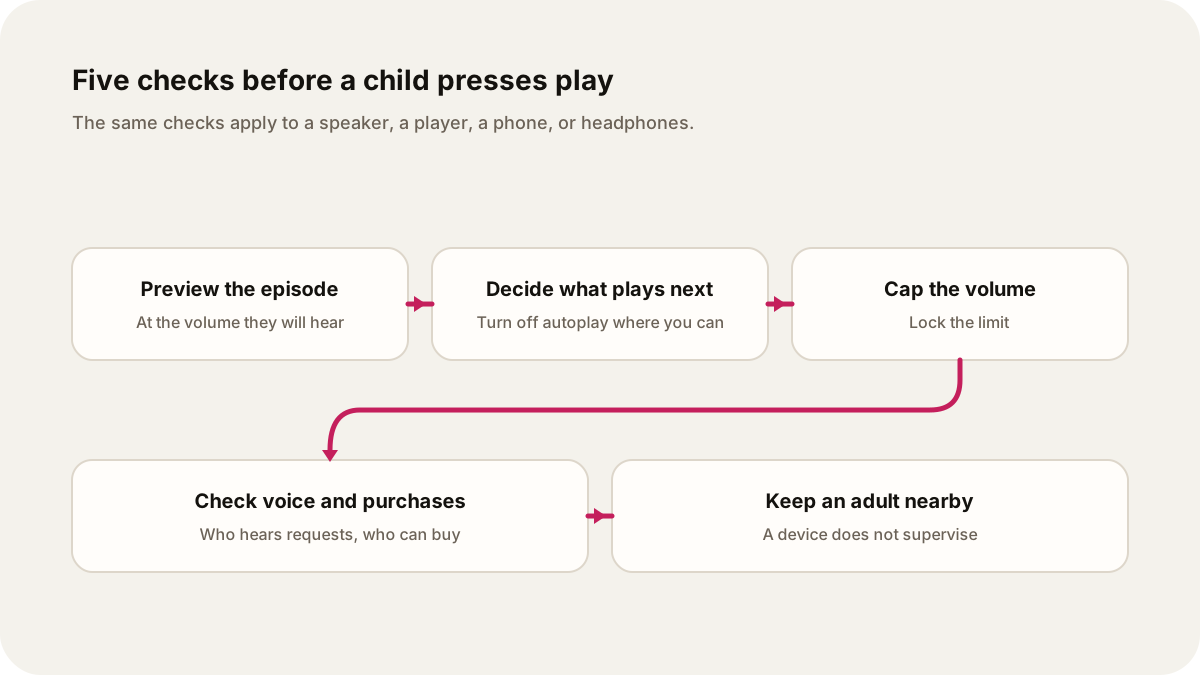
Whichever you choose, the content and the controls are separate decisions. Preview what the child will hear, decide what plays after it, cap the volume, and check who can hear spoken requests or make purchases. A screen-free device makes a different set of choices than a tablet does. It does not supervise a child.
How the main options compare
The useful questions are the same for every device: is there a screen, is there a microphone, can the child buy anything, who picks the next item, and can the volume be capped so the child cannot raise it.
| Feature | Dedicated kids' player | Smart speaker | Parent's phone or tablet | Child's own tablet |
|---|---|---|---|---|
| Screen | Often none; check the model | None on a speaker; a smart display has one | Yes | Yes |
| Microphone and voice | Check whether it has one at all | Voice is the main control | Only if an app asks for it | Only if an app asks for it |
| Purchases | Check how new content is added | Set in the account | Your own account, so lock the phone to one app | Approval settings on the child's account |
| What plays next | Usually what the adult loaded | Whatever a request finds, within filters | Whatever the app autoplays | Whatever the app autoplays |
| Volume cap | Check for a maximum volume setting | Check your model's settings | Headphone limit plus locked volume buttons | Headphone limit locked with a passcode |
| Good fit | A young child alone with a story | A shared room with an adult nearby | One car trip or waiting room | An older child you are teaching to choose |
A dedicated player is often the simplest choice for a young child because the adult loads the content ahead of time. Before buying one, check whether it has a microphone, whether it needs an account or an internet connection, how new stories get onto it, and whether the maximum volume can be set and locked. These details vary between products, so read the manufacturer's own page rather than a reseller listing.
Smart speakers: voice requests and account controls
A smart speaker is controlled by voice, so a child's spoken requests become data the service handles. The FTC's COPPA guidance treats an audio file that contains a child's voice as personal information for children under 13. It also describes a narrow policy for voice used briefly in place of typed words, such as a search, as long as the file is kept only as long as that takes.
The controls live in the speaker's account, not on the speaker itself. Google's help page for its speakers and displays lists media filters for music, video, news, and podcasts, plus scheduled downtime. Its Family Link page for shared devices says a child under 13 can use the assistant once a parent adds the child's account and voice, that children cannot make purchases there, and that a transcript of what the child said can be sent to third-party apps. Set those controls before the speaker goes into a child's room, and keep it somewhere an adult can hear what is playing.
A phone or tablet with the right locks
A phone has a screen, so it is not screen-free. With the right settings it can still behave like a single-purpose player.
On a parent's iPhone or iPad, Guided Access restricts the device to one app. Apple says it can be useful when you let a child use your device. You can set a time limit, require a passcode to end the session, ignore screen touches, and turn off the volume buttons. Apple notes that on iOS 26.1 and later this also blocks volume changes from Bluetooth headphone controls.
On a child's own device, Apple's parental controls guide covers Ask to Buy, which makes the child request approval for new apps and purchases, and age-based content ratings for music, podcasts, and other media. On Android, Google Play lets a Family Link parent require purchase approval for all content, paid content only, or in-app purchases only.
Headphones and safe volume settings
The WHO-ITU safe listening standard sets a reference exposure of 75 dB for 40 hours a week for children, lower than the 80 dB for 40 hours a week used for adults. It also calls for a parental volume control that is password protected. WHO's announcement describes the other features it asks devices to offer, including a "sound allowance" that tracks exposure.
HealthyChildren.org, from the American Academy of Pediatrics, gives practical checks in its hearing tips for parents:
- Keep devices at half volume or less and take a listening break every hour.
- Read the product details on headphones sold as "kid safe", because some still exceed 75 dB.
- Noise-cancelling headphones mean a child does not have to turn the volume up over background noise.
- At arm's length, a child wearing headphones should still hear you ask a question.
On an iPhone, Reduce Loud Audio lowers headphone sound above a decibel level you choose. A parent can lock that level for a family member through Screen Time's Content & Privacy Restrictions. Apple's headphone notifications use a threshold of more than 80 dB for 40 hours in seven days, which is the adult figure in the WHO-ITU standard, not the children's one. If a child uses your phone, set the Reduce Loud Audio level yourself rather than relying on the notification.
Preview the audio before you share it
An age label or a gentle title does not tell you what is in every minute. Listen to the whole episode yourself, through the same speaker or headphones the child will use, at the volume they will hear. Check the ending. Then check what the app or speaker plays next, because the next item is often chosen for you unless you turn autoplay off or load only what you approved.
Listening together sometimes helps too. HealthyChildren.org's piece on sharing media with your kids includes music, podcasts, and other audio in the media adults can enjoy alongside a child. For a story that becomes part of the evening, the bedtime audio routine guide covers how to keep the first request small.
A worked example: a six-year-old on a car trip
Here is one way to set up a two-hour drive for a six-year-old, using a parent's iPhone and wired headphones.
- The evening before, the parent makes a ten-minute story in Lissin and listens to all of it. If a scene does not fit, they ask for a change and listen to the new version.
- They download the episode in the Lissin app so it plays without a signal on the road.
- In Settings, they turn on Reduce Loud Audio and set a level they have checked against the arm's-length test.
- They open the episode, start Guided Access, turn off the volume buttons and screen touches, and set a time limit that leaves a break before the next story.
- They hand over the phone, and an adult in the car can hear whether the child is still listening.
The phone still has a screen, but with touch off there is nothing to scroll, and the session ends on the time the parent chose. For a younger child at home, a dedicated player loaded with the same previewed story removes the screen entirely.
Make a show around it
This is an example request a parent might type into Lissin on their own iPhone:
Make a ten-minute story for a six-year-old about a lighthouse keeper and a curious seabird who count the boats coming home. Use one calm narrator, simple words, no scary moments, and a complete ending.
In Lissin you describe what you want to hear and choose the length and voice. You can ask for changes in your own words, and download an episode for offline listening in the app. The volume, purchase, and app locks above are device settings, so set them on the phone or player itself. Treat each episode as audio to preview, the same as anything else you share with a child. If you are weighing a made-to-order story against a ready-made one, see personal stories versus generic sleep stories.
Sources
- World Health Organization and ITU, "Safe listening devices and systems: a WHO-ITU standard": the 75 dB children's mode, the 80 dB adult mode, and password-protected parental volume control.
- World Health Organization (2019), "New WHO-ITU standard aims to prevent hearing loss among 1.1 billion young people": sound allowance and volume limiting features.
- HealthyChildren.org (AAP), "Tips to Preserve Your Child's Hearing During the Holidays": half volume, hourly breaks, "kid safe" headphones, and the arm's-length check.
- HealthyChildren.org (AAP), "Why Co-Viewing Is Important": listening to music and podcasts together.
- Federal Trade Commission, "Complying with COPPA: Frequently Asked Questions": a child's voice recording as personal information and the policy on brief voice use.
- Google Nest Help, "Set up Parental controls & Digital wellbeing on devices in your home": media filters and downtime on speakers and displays.
- Google For Families Help, "Let your child use Google Assistant on your devices": child setup, purchases, and transcripts sent to third-party apps.
- Google For Families Help, "Purchase approvals on Google Play": approval options for a child's purchases.
- Apple Support, "Use Guided Access on iPhone or iPad": single-app sessions, time limits, and locked volume buttons.
- Apple Support, "Set up parental controls to manage your child's iPhone or iPad": Ask to Buy and age-based content restrictions.
- Apple Support, "Check your headphone audio levels on iPhone": Reduce Loud Audio and locking it through Screen Time.
- Apple Support, "Headphone notifications on your iPhone, iPad, or Apple Watch": the 80 dB, 40-hour, seven-day threshold.